Clear Concepts Consulting Group
Clear Concepts OSPA AI Assistant Workbench
Workshop resources and setup materials for building a focused HR assistant.
Attendee Companion Site

Stop Answering the Same Questions

Use this workbench alongside the workshop timeline. Each section contains the downloads, setup materials, or finished examples needed for that part of the day.

Who's Here

8:30 opening check-in

Have your preferred AI tool open in a laptop browser. If you are still deciding, you can follow the setup steps in Session 2 when we start building.

8:30

What to have ready

  • A laptop browser
  • Access to ChatGPT, Claude, or Gemini
  • This companion site open in another tab

What this site is for

  • Keep you on track during the session
  • Provide resources at the point they are needed
  • Access samples and templates later
Session 1

Why AI tools fail HR teams

Use this block for the content audit work. If you brought district content, use that. If not, download one Clear River file and use it as your practice source.

8:30-10:00
DOCX

Leave and Absences Policy

Fallback practice content for the leave topic if you did not bring district materials.

Download
DOCX

Compensation and Payroll Policy

Fallback practice content for the pay topic if you did not bring district materials.

Download
DOCX

Licensure Requirements Policy

Fallback practice content for the licensure topic if you did not bring district materials.

Download
DOCX

Content Audit Worksheet

Use this while checking whether the source content can answer realistic employee questions.

Download
DOCX

Instructions Draft Template

Start drafting the assistant's scope, source rules, limits, escalation rules, and tone.

Download
Break

Network break

Use the break to choose the one topic you want to build with and circle one or two employee questions from your audit. Those questions become your first Q&A cards in Session 2.

10:00-10:30
Before Session 2: pick one topic, keep the source set narrow, and decide which AI platform you will use for the hands-on build.
Session 2

Build your first assistant

Use this block to engineer your first Q&A cards, set up your chosen platform, upload the context-engineered content you created, and paste the governing instructions. Your starting source can be your district material or a Clear River practice file.

10:30-12:00
DOCX

Activity 3 Content Engineering Card Templates

Use this before you build to turn employee questions into clear Q&A cards the assistant can use.

Download

Build sequence

  • Engineer the first Q&A cards from your audit
  • Set up the assistant workspace
  • Upload the context-engineered content you created
  • Paste the instructions you drafted from the template
  • Test until you find the weak spots
ChatGPT
Custom GPT
  1. Sign in to chatgpt.com on a laptop browser with an account that can create GPTs.
  2. Open Explore GPTs, then select Create.
  3. Add a clear name, short description, and the governing instructions.
  4. Upload the context-engineered document under Knowledge. Use the engineered version of your district content, or the engineered Clear River content if you did not bring district material.
  5. Keep extra capabilities off unless you have a specific reason to use them.
  6. Use the preview area to test real employee questions before sharing.
Claude
Project
  1. Sign in to claude.ai on a laptop browser.
  2. Open Projects and create a new project with a clear name.
  3. Add the context-engineered document to the project knowledge area. Use the engineered version of your district content, or the engineered Clear River content if you did not bring district material.
  4. Paste the governing instructions into the project instructions field.
  5. Start a new chat inside the project and test real employee questions.
Gemini
Gem
  1. Sign in to Gemini on a laptop browser.
  2. Go directly to gemini.google.com/gems/create to open the Gem builder.
  3. Name the Gem and paste the governing instructions.
  4. Add the context-engineered document under Knowledge. Use the engineered version of your district content, or the engineered Clear River content if you did not bring district material.
  5. Use the preview area to test real employee questions, then save when ready.
DOCX

ChatGPT Setup Guide

Custom GPT setup steps for the paid ChatGPT account you prepared for the workshop.

Download
DOCX

Claude Setup Guide

Claude Pro Project setup steps for adding instructions and engineered content.

Download
DOCX

Gemini Setup Guide

Gem setup steps for the paid Google AI/Gemini account you prepared for the workshop.

Download
Governing Instructions

Write your bot's instructions

Download the packet template, fill it in for your district or Clear River practice topic, then paste your completed instructions into the setup area for your chat tool.

DOCX

Instructions Draft Template

Fill in this packet worksheet first. Your completed text becomes the governing instructions you paste into ChatGPT, Claude, or Gemini.

Download

What to write before pasting

  • The bot's one topic and audience
  • The source rule: answer only from the content provided
  • Escalation rules for individual records, unclear answers, or sensitive advice
  • The tone and answer style employees should experience
Do not paste a generic prompt and move on. Write instructions for the bot you are building, using the template as a drafting tool.
Lunch

Pause and compare notes

Keep your build open if you want to revisit it after lunch. This is a good time to note what broke, what was unclear, and what your source content could not answer.

12:00-1:00
We resume at 1:00. Session 3 shifts from the hands-on build to rollout, maintenance, and what this would take back at your district.
Session 3

The full picture

Use this final block to think about what belongs in a real district rollout: ownership, review, monitoring, and maintenance.

1:00-2:00

Take back to your district

  • Your district source content or the Clear River fallback examples
  • The audit worksheet pattern
  • The governing instructions structure

Questions for implementation

  • Who owns the source content?
  • Who reviews answers before launch?
  • Who monitors failed or escalated questions?
Samples

What finished versions can look like

Use these examples after the build to compare structure, level of detail, and how finished assistant materials can be packaged.

Reference
DOCX

Federal Tax General Q&A

Example of a finished Q&A-style resource.

Download
DOCX

GSCS Leave Glossary

Example of a glossary-style content resource.

Download
PDF

Patty Pay Assistant Flyer

Example of a polished employee-facing assistant handout.

Download
DOCX

Retirement Savings FAQ

Example of a decision-focused FAQ resource.

Download
DOCX

Walton Patty AI Instructions

Example of completed governing instructions for a deployed assistant.

Download
Contact

Stay in touch

Questions after the workshop, or want to talk through what this could look like in your district?
After
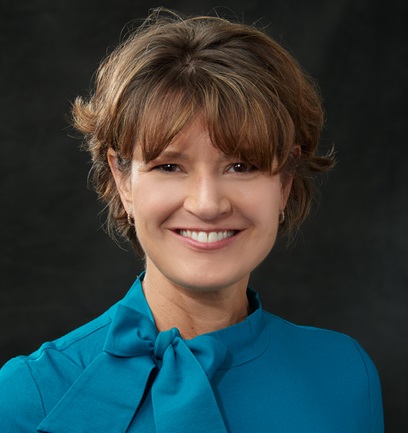
Ali Stinson
Ali Stinson
Executive Vice President and Partner, Clear Concepts Consulting Group

Ali Stinson has spent the past two years building and maintaining AI assistants for school district HR teams. She works with districts across Georgia on assistants that handle certification questions, leave policy, pay, and benefits; tools that are live, actively used by employees, and monitored and updated on an ongoing basis.

Ali has been with Clear Concepts Consulting Group since 2007, focused on technology implementation and process improvement for public school HR teams. Before that, she spent more than a decade in management consulting and large technology firms. She holds an MBA from Georgia State, a BA from Furman University, and the SHRM Senior Certified Professional credential.

Clear Concepts Consulting Group has provided HR, benefits, and technology consulting exclusively to public school districts for nearly 30 years.